
Read.ai

Read.ai turns meetings, email, and messages into AI summaries, transcripts, search, and coaching for teams.
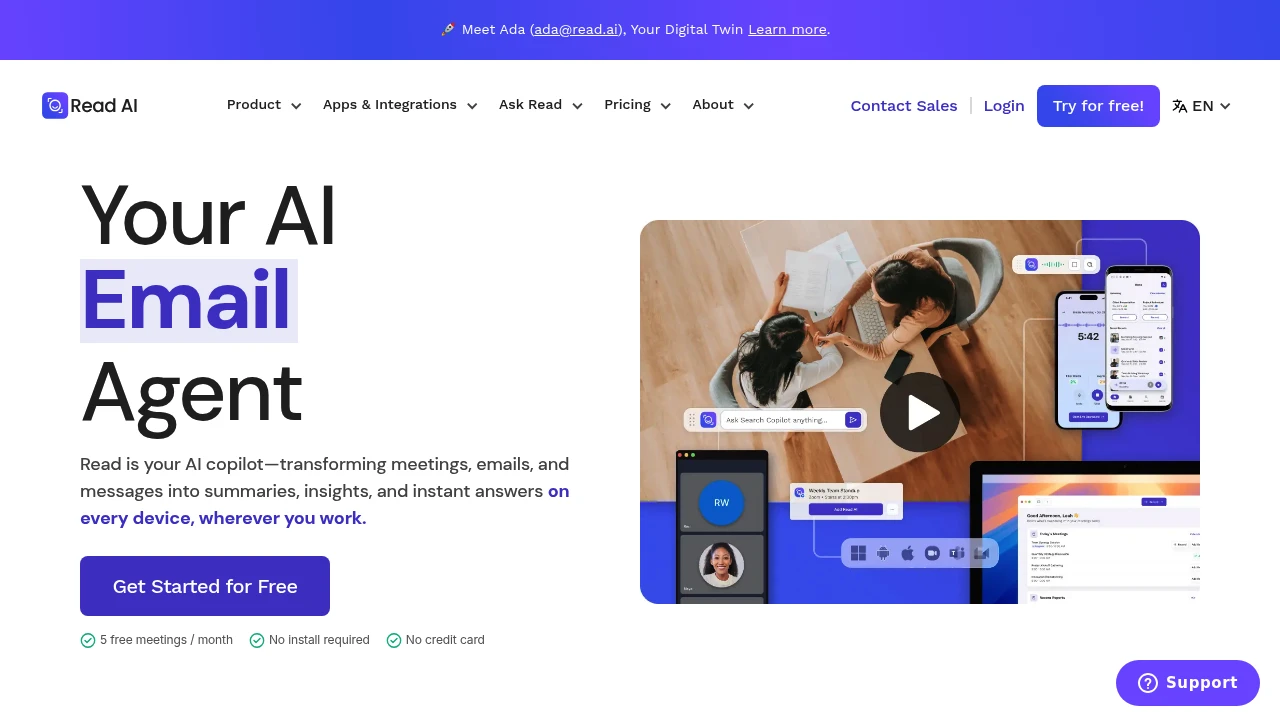
Read.ai is an AI meeting assistant for cleaner records across calls, email, and chat. It transcribes meetings, writes summaries and action items, adds coaching metrics, and searches meetings, messages, CRM, documents, and notes.
Key Highlights
- Meeting recaps, transcripts, action items, highlights, and questions
- Ask Read search with citations across meetings, email, chat, docs, and notes
- Works with Google Meet, Zoom, and Microsoft Teams
- Coaching metrics for speed, filler words, bias, and charisma
- Web, iOS, Android, Windows, and MacOS apps, plus Slack, Notion, Salesforce, HubSpot, Jira, Confluence, Zapier, and webhooks
What Makes It Different
Read.ai's main difference is breadth. Meeting reports, email, messages, CRM, documents, and notes feed Ask Read, with citations back to the source.
It also tracks behavior, not just notes. Paid workspaces add coaching recommendations, sharing rules, report distribution, license controls, and meeting join rules.
Features & Capabilities
Read.ai joins Meet, Zoom, or Teams calls, captures live notes and metrics, then creates a report with summary, transcript, topics, actions, questions, and coaching. Free meetings are capped at 1 hour and 5 transcripts per month. Paid plans add unlimited meeting transcripts and longer durations.
Beyond live calls, it supports enterprise search, file uploads, and sharing through email or Slack. Read.ai lists SOC 2 Type 2 certification, GDPR compliance, HIPAA compliance support, SAML, SCIM, domain capture, and custom data retention on higher-tier plans.
User Ratings and Testimonials
Read.ai does not publish an average user rating. Read.ai includes testimonials from the U.S. Chamber of Commerce, Fortune Magazine, and other customers.
The main tradeoffs are plan limits and meeting-bot governance. Playback starts on Enterprise, workspaces require paid licenses on one plan, and Read.ai says it does not offer refunds after renewal.
Pricing & Value
- Free: $0, with 5 meeting transcripts per month, enterprise search, summaries, coaching, basic integrations, and apps
- Pro: $19.75/user/month, or $15/user/month billed annually, with unlimited transcripts, priority processing, 100 file upload credits per month, premium integrations, reports, storage, and workspace access
- Enterprise: $29.75/user/month, or $22.50/user/month billed annually, with playback, video highlights, 200 file upload credits per month, and premium support
- Enterprise+: $39.75/user/month, or $29.75/user/month billed annually, with HIPAA support, SAML, SCIM, domain capture, custom retention, 300 file upload credits per month, and onboarding
Free is for light testing. Pro fits regular transcription, while Enterprise tiers add playback, support, and admin controls.


FAQs
It joins when someone connects Read.ai or invites the assistant so it can record, transcribe, and summarize the call.
Read.ai says it is SOC 2 Type 2 certified, GDPR compliant, and does not train on customer data by default.
Yes. The Free plan includes 5 meeting transcripts per month, summaries, search, coaching, basic integrations, and apps.
Key concerns are consent, recording visibility, and transcript access. Teams should set clear sharing rules before using meeting bots.
Disable its auto-join settings, disconnect calendar or app integrations, or remove the assistant from individual meetings.

You might also like
 bisibility — Free beta: Track your website’s keywords, Google rankings, Search Console insights, and share of voice.

